Key features
- Text→Image generation: converts natural-language prompts into images with strong instruction following.
- Image editing / inpainting: accepts reference images and masks to perform targeted edits.
- Cost-optimized (“mini”) design: a smaller footprint that OpenAI and observers describe as much cheaper per image than the large model (OpenAI/DevDay messaging and early reports say ~80% less expensive).
- Flexible output controls: supports size, output format (JPEG/PNG/WEBP), compression and a quality knob (low/medium/high/auto in the cookbook).
Technical details (architecture & capabilities)
- Model family & input/output: member of the gpt-image-1 family; accepts text prompts and image inputs (for edits) and returns generated image outputs. Quality/size parameters control resolution (typical max ~1536×1024 in this family—see docs for exact supported sizes).
- Operational tradeoffs: engineered as a smaller footprint model—trades some top-end fidelity for throughput and cost improvements while preserving robust prompt-following and edit features.
- Safety & metadata: follows OpenAI’s image safety guardrails and embeds C2PA metadata options for provenance when available.
Inputs & outputs — canonical usage supports:
- Text prompt (string) to generate a new image.
- Image + mask to perform targeted edits/inpainting.
- Reference images to control style or composition.
These are exposed via the Images API (model namegpt-image-1-mini).
Limitations
- Lower peak fidelity: compared with the large gpt-image-1 model, mini may lose some micro-detail and top-end photorealism (expected tradeoff for cost).
- Text rendering & tiny details: like many image models, it can struggle with small legible text, dense charts, or micro-fine textures; expect to post-process or use higher-capacity models for those needs.
- Edit scope: image edit/inpainting features are available but suggest some editing limitations relative to interactive ChatGPT web tools—edits are effective for many tasks but may require iterative refinement.
- Safety & policy constraints: outputs are subject to OpenAI moderation/safety guardrails (explicit content, copyrighted content restrictions, disallowed outputs). Developers can control moderation sensitivity via API parameters where offered.
Recommended use cases
- High-volume content generation (marketing assets, thumbnails, rapid concept art) — where cost per image is primary.
- Programmatic editing / templating — bulk inpainting or variant generation from a base asset.
- Interactive applications with budget constraints — chat interfaces or integrated design tools where response speed and cost matter more than absolute top fidelity.
- Prototyping & A/B image generation — generate many candidate images quickly and selectively upscale or re-run on larger models for finalists.
- How to access gpt-image-1-mini API
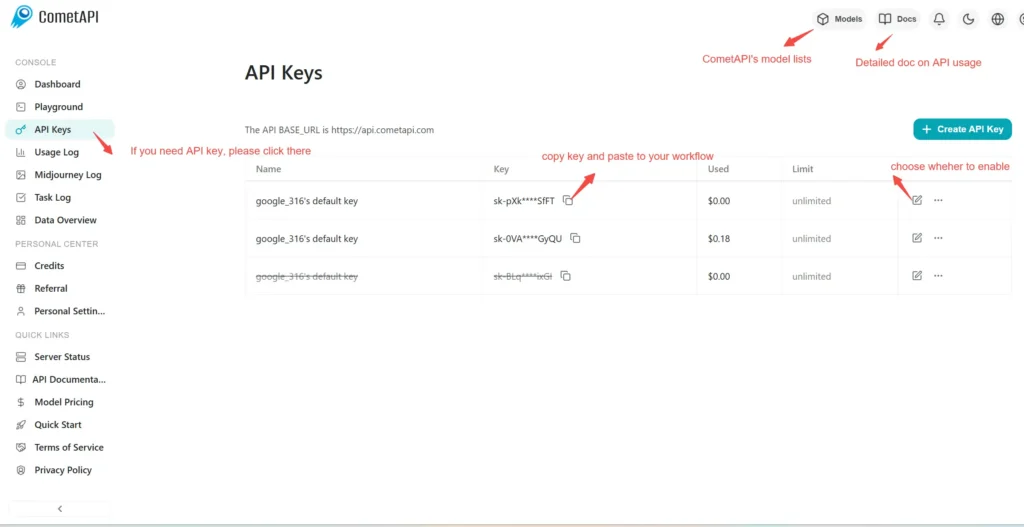
Step 1: Sign Up for API Key
Log in to cometapi.com. If you are not our user yet, please register first. Sign into your CometAPI console. Get the access credential API key of the interface. Click “Add Token” at the API token in the personal center, get the token key: sk-xxxxx and submit.
Step 2: Send Requests to gpt-image-1-mini API
Select the “\**gpt-image-1-mini \**”endpoint to send the API request and set the request body. The request method and request body are obtained from our website API doc. Our website also provides Apifox test for your convenience. Replace <YOUR_API_KEY> with your actual CometAPI key from your account.
Insert your question or request into the content field—this is what the model will respond to . Process the API response to get the generated answer.
Step 3: Retrieve and Verify Results
Process the API response to get the generated answer. After processing, the API responds with the task status and output data.